Discover how creators generate professional AI images and videos without design complexity using modern generative AI tools like Adobe Firefly and integrated creative workflows.
For a long time, creating professional quality visuals felt like a privilege reserved for trained graphic designers. You needed to understand layers, masks, color theory, export settings, and countless shortcuts just to produce something usable. Beginners often felt overwhelmed, and even experienced designers spent more time managing tools than shaping ideas.
That reality is changing fast.
Today, designers and creators are able to generate high-quality AI images and videos with far less design complexity than ever before. It’s the result of rapid advancements across the entire generative AI ecosystem.
Over the past few years, multiple AI image and video generation models have reshaped how visual content is created. Tools like DALL·E, Midjourney, Stable Diffusion, and emerging lightweight models such as Nano Banana have made it possible for creators to turn text prompts into compelling visuals within seconds. Together, these platforms have lowered the barrier to entry and changed expectations around speed, experimentation, and creative output.
Among these tools, Adobe Firefly takes a slightly different and very deliberate approach. Rather than existing as a standalone AI experiment, Firefly is designed to work within real-world design workflows, deeply integrated with industry-standard tools like Adobe Photoshop and Adobe Illustrator.
In this article, we’ll take a closer look at how Adobe Firefly works, how it fits into the broader generative AI landscape, and most importantly, how its tight integration with Photoshop and Illustrator helps designers create faster, iterate smarter, and reduce repetitive manual work without sacrificing creative control. Rather than replacing traditional design skills, Firefly acts as an accelerator, enhancing familiar workflows with AI-powered assistance where it matters most.
This article is written for beginners exploring AI creativity for the first time and working designers looking to speed up workflows without losing control. We’ll break down how this new approach to AI-powered design actually works, and why it feels different from everything that came before.
Why Visual Creation Has Always Felt Complicated
Before AI entered the picture in a meaningful way, visual creation usually meant:
• Learning complex software ecosystems
• Memorizing workflows that took months to master
• Spending hours fixing small mistakes
• Relying heavily on templates or stock assets
Ask yourself:
• Have you ever had a great visual idea but avoided executing it because the tools felt intimidating?
• Have you generated AI images elsewhere that looked impressive, but unusable?
• Have you spent more time correcting outputs than creating something original?
These challenges are not unique to beginners, they’ve been part of creative workflows for years. While generative AI has made it easier to produce images quickly, many tools still stop at the point of generation, leaving creators to handle usability, refinement, and consistency on their own.
This is the gap Adobe Firefly aims to address. Rather than focusing only on producing standalone AI outputs, Firefly is designed to support the entire creative process, from idea generation to usable design, within a familiar professional environment.
As a company with decades of experience shaping creative software, Adobe has approached generative AI with a strong emphasis on workflow continuity. Firefly’s capabilities are integrated directly into tools like Adobe Photoshop and Adobe Illustrator, allowing designers to move seamlessly from AI-assisted creation to hands-on refinement without switching platforms.
Rather than treating AI as a separate experiment, this approach makes generative tools feel like a natural extension of existing design workflows. The focus shifts away from simply generating images faster and toward producing visuals that are editable, adaptable, and ready for real-world use, which is where many AI tools still fall short.
What Is Adobe Firefly and Why Is It Gaining So Much Attention?
Adobe Firefly is Adobe’s generative AI platform developed with a clear focus on creative workflows rather than standalone experimentation. As a company that has shaped the graphic design and creative software industry for decades, Adobe has drawn heavily on its long-standing experience in image editing, illustration, and visual production while developing Firefly.
That accumulated knowledge is reflected in how Firefly functions and how easily it integrates into Adobe’s existing creative tools. Instead of positioning AI as a separate layer, Adobe has designed Firefly in a way that allows its outputs to fit naturally into tools like Adobe Photoshop and Adobe Illustrator. This approach makes the transition from AI-assisted generation to hands-on design refinement more efficient and intuitive for designers.
The result is a system that feels less like an experimental AI feature and more like an extension of familiar creative tools. By embedding generative capabilities within established design environments, Adobe enables designers to move from concept to usable design faster, while still retaining full control over editing, composition, and final output.
Why Firefly stands out in the market
• Backed by Adobe’s long-standing trust in creative industries
• Designed to integrate directly into existing Adobe tools
• Built with commercial safety in mind
• Focused on control, not randomness
In my experience, designers don’t reject AI because it’s powerful, they reject it when it feels unreliable. Firefly earns trust by making outputs usable, editable, and predictable.
First Impressions: Understanding the Adobe Firefly Home Screen
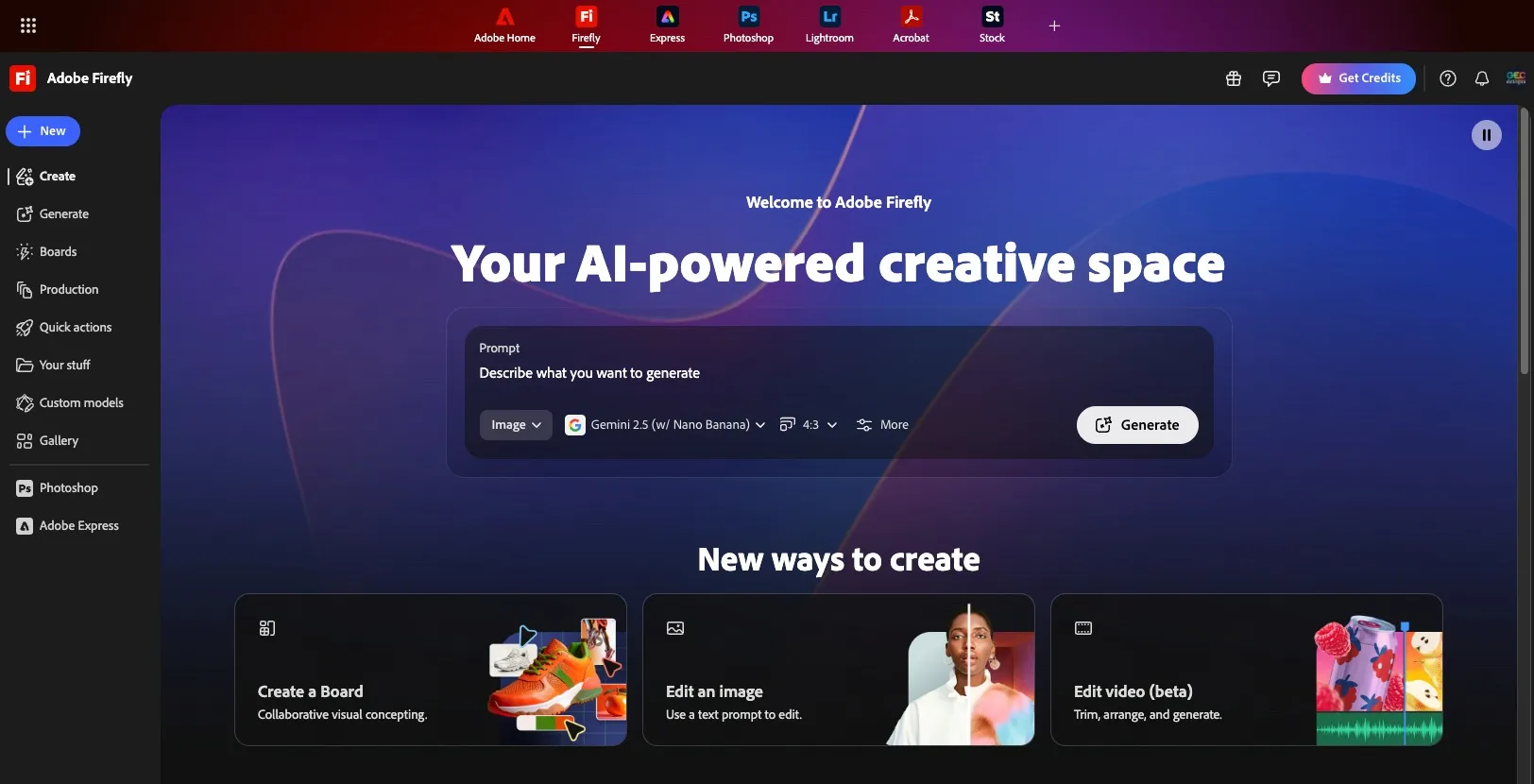
When you first land on the Adobe Firefly home screen, the layout immediately communicates what the tool is built for: generating creative content quickly without forcing users to navigate through complex menus or configuration screens.
At the center of the screen, you’ll notice a prominent prompt input box. This is where users describe what they want to generate, whether that’s an image or a video. The design keeps this interaction simple and front-and-center, making it clear that Firefly is prompt-driven at its core.
Just below the prompt field, Firefly allows users to choose what type of content they want to generate. You can switch between image generation and video generation directly from the home screen, without moving into a separate tool or workflow.
Next to the content-type selection is one of Firefly’s most significant capabilities: model selection.
Access to Multiple Image and Video Generation Models in One Place
At the time of writing this article, Adobe Firefly provides access to a wide range of generative AI models, all within the same interface.
Image generation models
Firefly includes:
• Adobe’s own in-house image generation models
• Multiple partner models that are widely used across the industry
These include well-known and industry-standard options such as:
• GPT Image
• Gemini Nano Banana
• Flux
• Imagen
• Runway
• Ideogram, along with other partner-supported models
This means Firefly is not limited to a single proprietary engine. Instead, it acts as a central access point where users can experiment with different image-generation approaches without switching tools or platforms.
Video generation models
If you switch the content type from image to video, Firefly adjusts the available options accordingly.
At the time of writing:
• Firefly includes one Adobe in-house video generation model
• Alongside multiple partner video models, totaling nine additional options
These include industry-recognized video generation platforms such as:
• Veo
• Sora
• Ray
• Pika
This makes Firefly a single interface through which users can explore many of the best video generation models currently available, without managing multiple accounts or learning different UIs.
An Important Note About Content Type Selection
One important detail to understand on the Adobe Firefly home screen is that the content type selection (image or video) acts as a starting context for the generation workflow.
When a user selects Image on the home screen and clicks Generate, they are taken into the image-generation workspace. From there, they can continue to adjust most settings, such as prompts, models, styles, sizes, and variations, but the content type itself remains fixed within that session. In other words, once you enter the image generation screen, you cannot switch directly to video generation from within that workspace.
To generate a video instead, the user needs to return to the Firefly home screen, select Video as the content type, and then begin a new generation flow. This design choice keeps each workspace focused and avoids mixing image and video controls within the same interface.
All other generation-related settings, including model selection, output size, and prompt refinements, can still be modified after entering the tool screen. Only the content type (image vs video) is locked at the entry point, making the initial choice on the home screen an important first step in the workflow.
Core Features of Adobe Firefly (Detailed Breakdown)
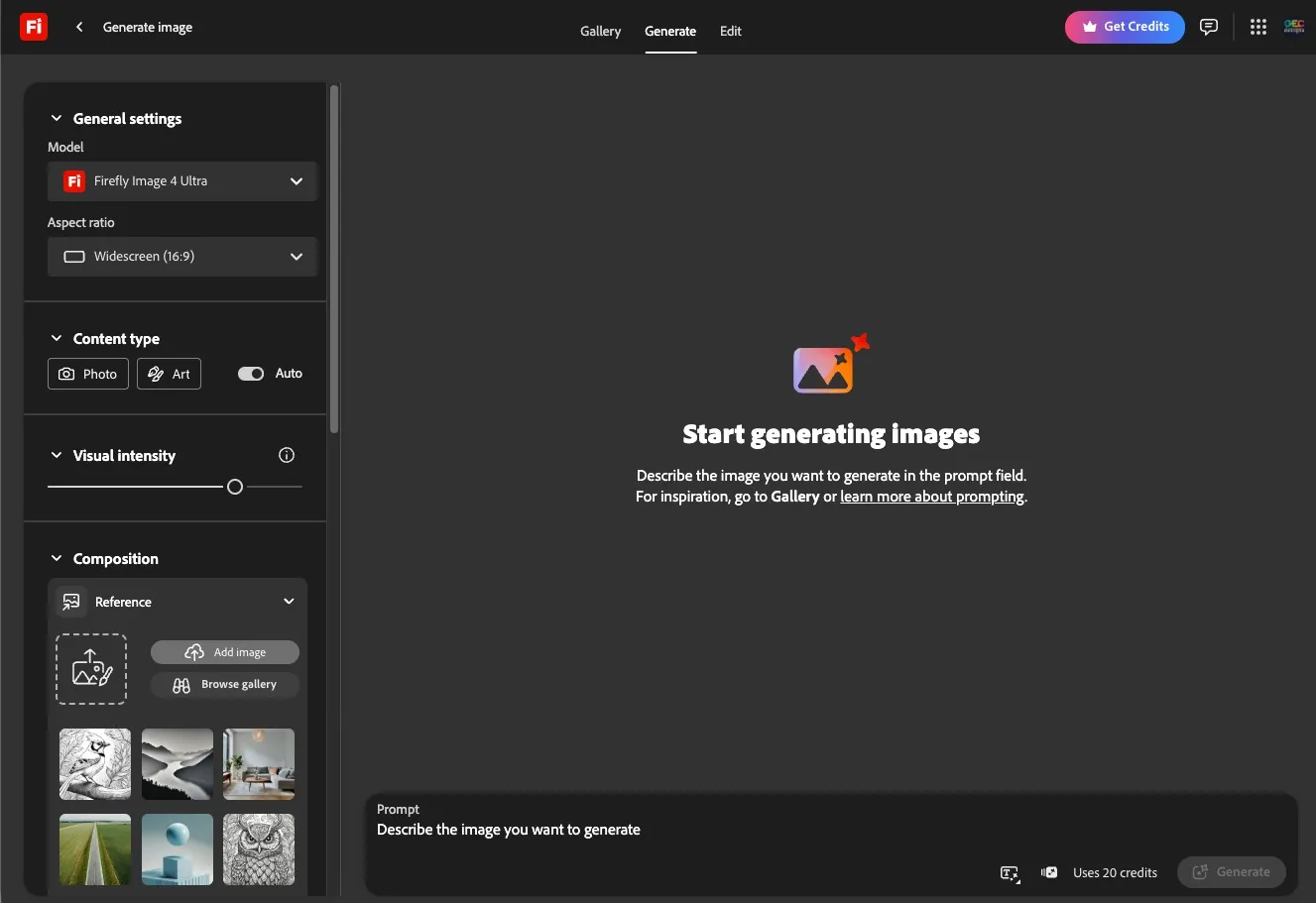
Once a user selects the content type (image or video) on the Firefly home screen and clicks Generate, they are routed to the Adobe Firefly generation workspace. This is the primary working screen where all generated outputs appear and where users fine-tune their results.
The center of the screen is reserved for output display. Any image generated based on the prompt will appear here, allowing users to review results, compare variations, and decide whether further refinement is needed.
All configuration and control options are placed on the left-hand toolbar, making it easy to adjust settings without leaving the workspace.
General Settings: Model and Aspect Ratio Selection
The first section on the left-hand panel is General Settings, which defines how the content will be generated.
Model selection
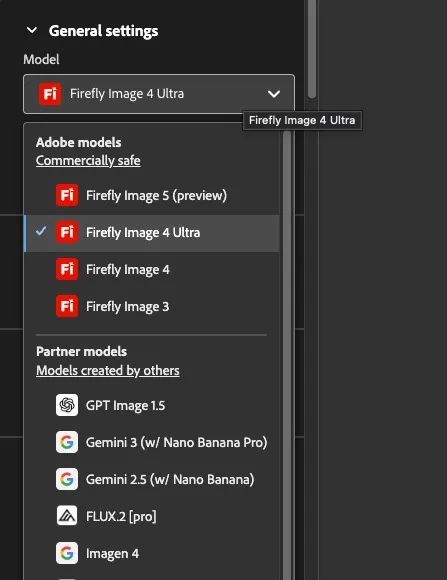
At the top of this section is the Model dropdown. Here, users can choose which AI model will be used to generate the content.
At the time of writing this article:
• The first set of options includes four Adobe Firefly in-house models
• Below that, users will find a list of partner models, which include several industry-standard image generation models
Users can select any available model based on their requirements and then generate content using that specific model. The chosen model directly influences the style, quality, and behavior of the output.
Aspect ratio and size controls
Just below the model selection is the Aspect Ratio setting.
This allows users to define:
• Whether the output should be square, portrait, landscape, or widescreen
• Image sizes optimized for:
• Mobile devices
• Social media platforms
• Desktop wallpapers
• Web and presentation layouts
It’s important to note that available aspect ratio options can vary depending on the selected model. Some models offer a wide range of size options, while others may support only a limited set of formats.
Content Type: Photo, Art, or Auto
The next section is Content Type, where users can specify how Firefly should interpret the visual output.
Options include:
• Photo – for more realistic, photographic-style results
• Art – for illustrations, stylized visuals, anime, or 3D-like outputs
• Auto – where Firefly decides the content type based on the prompt
If Auto is enabled, Firefly analyzes the prompt and selects whether a photo-style or art-style interpretation is more appropriate.
Visual Intensity: Controlling the Overall Look
The Visual Intensity slider controls how strong or expressive the generated visuals appear.
• Lower intensity generally results in simpler, more natural-looking images
• Higher intensity increases dramatic elements such as:
• Stylization
• Lighting effects
• Fantasy or hyper-realistic details
This setting allows users to control how subtle or expressive the final output should be, without changing the core prompt.
Composition Reference: Guiding the Structure of the Image
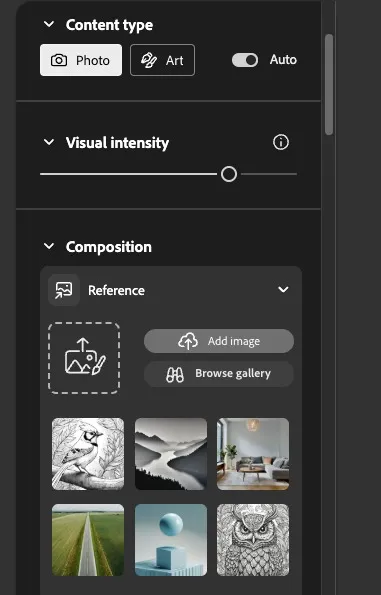
The Composition section allows users to influence the structure and visual arrangement of the generated image.
Here, users can:
• Upload a reference image
• Choose from predefined composition presets
• Guide Firefly toward specific visual structures such as:
• Sketch-style outputs
• Black-and-white compositions
• 3D-style visuals
• Hyper-realistic layouts
These presets act as fine-tuning controls, helping shape the output even when the prompt remains the same.
Styles and Effects: Fine-Tuning the Visual Output
Beyond composition, Firefly provides additional Style and Effect options.
Style presets
Within the Style section, users can apply predefined looks such as:
• Neon effects
• Vibrant or colorful styles
• 3D aesthetics
• Photorealistic finishes
These styles help quickly define the overall tone and mood of the image.
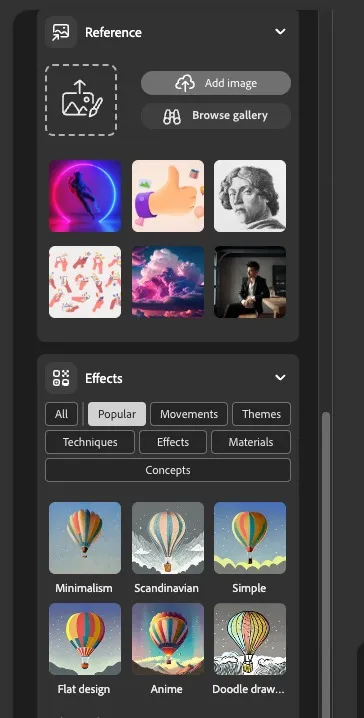
Effects library
The Effects section offers a wide range of visual enhancements, organized into categories such as:
• Mood and atmosphere
• Themes (fantasy, underwater, futuristic, cinematic)
• Techniques
• Materials and textures
Users can select effects like:
• Bokeh backgrounds
• Lighting enhancements
• Environmental themes
• Artistic textures
This section is extensive and encourages experimentation, allowing creators to significantly alter the look and feel of an image without rewriting the prompt.
Important Note on Model-Specific Controls
It’s important to understand that many of the visual controls, such as content type, visual intensity, composition, styles, and effects—are available primarily when using Adobe Firefly’s in-house models.
When using partner models, these settings may not appear. In such cases:
• Users must describe all visual details directly within the prompt
• This aligns with how most industry-standard generative AI models operate
This distinction allows Adobe’s in-house models to offer deeper UI-based control, while partner models retain their original prompt-driven workflows.
At this stage, the Firefly workspace provides everything needed to:
• Generate images
• Adjust models and formats
• Fine-tune visual outputs
• Iterate efficiently without leaving the tool
In the next section, we’ll step back and look at why this UI design matters, how it impacts real-world workflows, and what makes this approach particularly effective for both beginners and professional designers.
Key Features and Core Functions of Adobe Firefly
Once an image is generated in Adobe Firefly, the workspace shifts from generation to exploration and refinement. This is where Firefly starts to feel less like a simple AI generator and more like a creative system built around real design workflows.
The generated image appears in the center of the workspace, while contextual options become available both around the image and through the top navigation. From this point onward, users are not locked into a single output, they can iterate, refine, and extend the image in multiple ways.
Community Gallery and Prompt Reuse
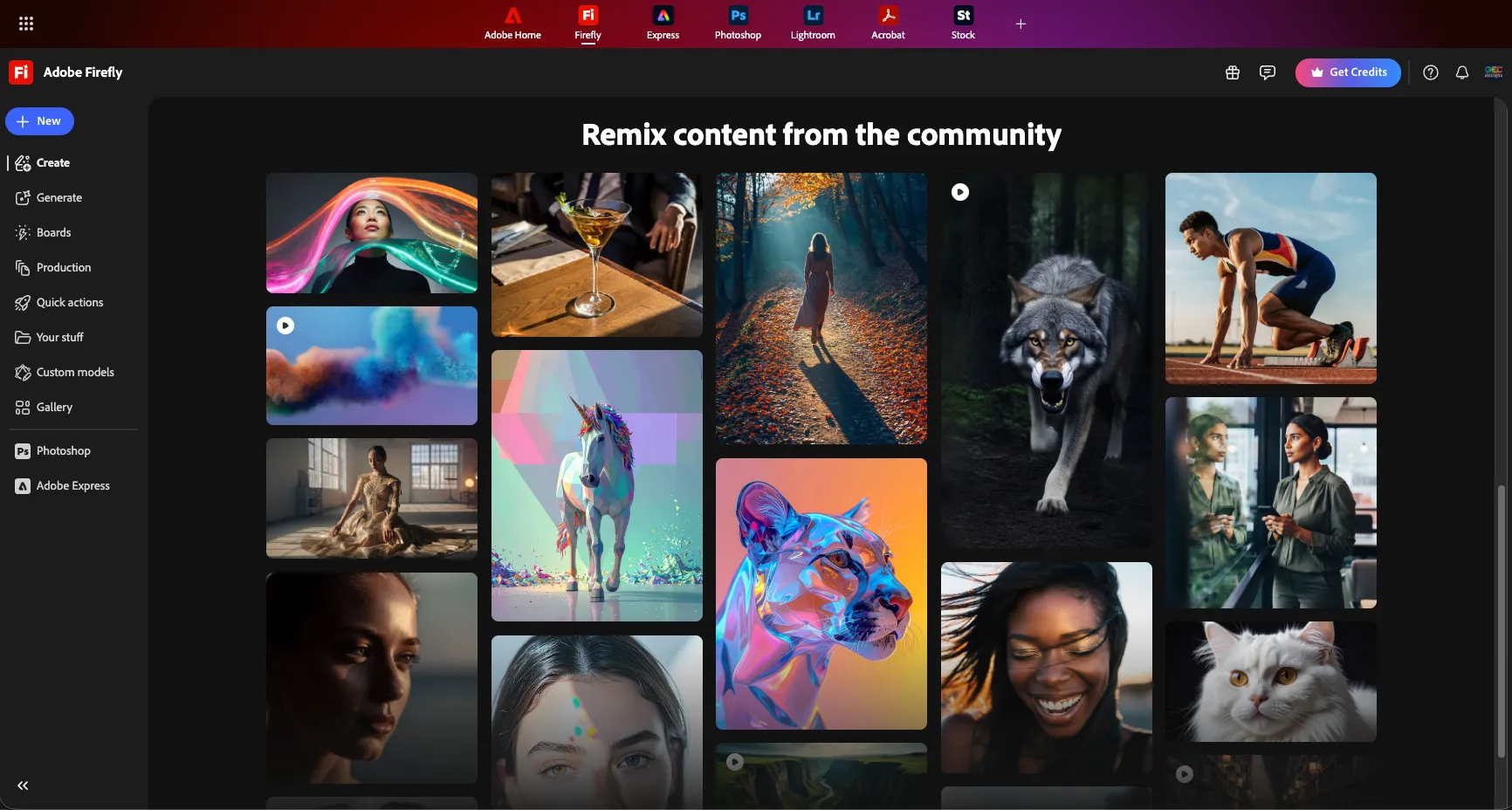
One of the most practical features built into Firefly is the Gallery.
At the top of the workspace, users can access a gallery of images created by the Firefly community. These are not just visual references, they are fully reusable creative starting points.
When a user selects an image from the gallery:
• The image opens directly in the generation workspace
• The original prompt used to create that image is revealed
• That prompt automatically appears in the prompt field
From there, users can:
• Reuse the same prompt as-is
• Modify the prompt wording
• Change models, styles, visual intensity, or composition
• Generate new variations based on the same creative idea
This feature is especially useful for beginners who want to understand how effective prompts are structured, and for designers who want to quickly build on existing ideas rather than starting from scratch.
Prompt Suggestions and Prompt Enhancement
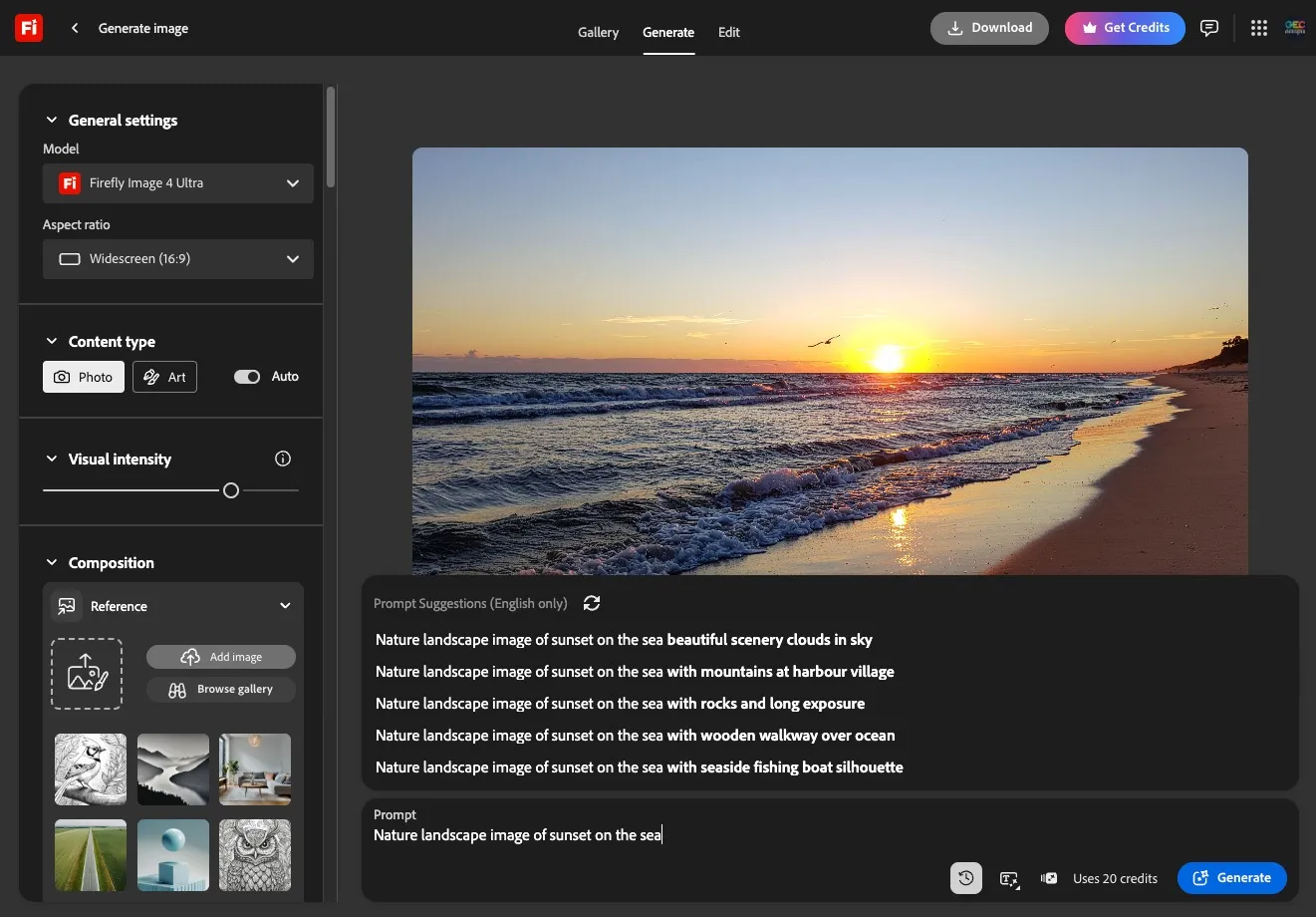
Firefly also includes a prompt suggestion and enhancement system, visible in the lower portion of the workspace.
When this feature is enabled:
• Firefly begins suggesting complete prompt variations as soon as the user starts typing
• Typically, around four to five refined prompt suggestions appear
• These suggestions expand on the original idea with additional descriptive detail
For example, starting with a simple prompt like
“Nature landscape image of sunset on the sea”
Firefly may suggest:
• Beautiful scenery with clouds in the sky
• Sunset over the sea with mountains near a harbor village
• Long-exposure style sunset with rocks
• Seaside scene with fishing boat silhouettes
Users can select one of these suggestions or use them as inspiration to refine their own prompt.
This feature doesn’t replace creativity, it supports it, helping users think beyond minimal descriptions and explore richer visual outcomes.
Image Generation and Model-Specific Output
In the example shown, the image is generated using Adobe Firefly’s in-house Image 4 Ultra model. Once the prompt is finalized and the model selected, clicking Generate produces the output in the central workspace.
At this stage:
• The image reflects the selected model’s characteristics
• Aspect ratio and visual settings applied earlier are preserved
• The output becomes interactive, rather than static
This is where Firefly transitions from generation to post-generation control.
Post-Generation Editing and Refinement Options
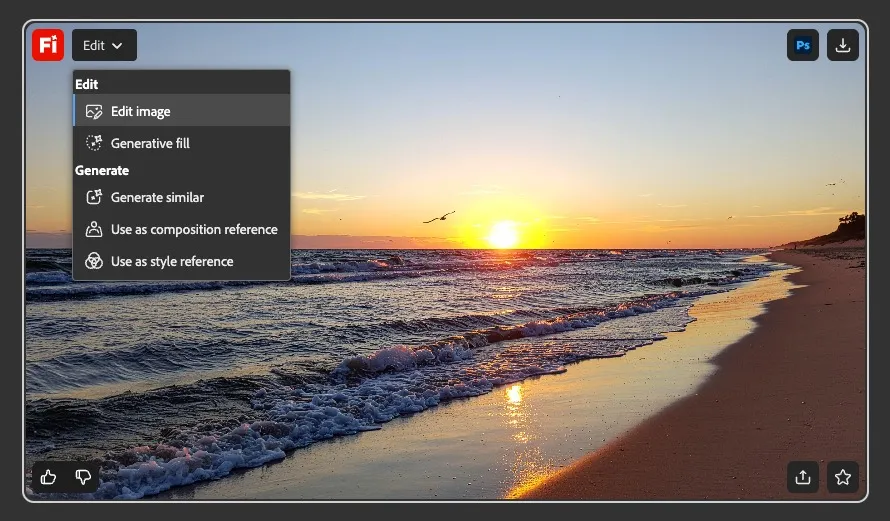
After an image is generated, clicking on the image reveals a set of contextual actions that extend what can be done with the output.
Available options include:
• Edit Image
Allows users to directly modify elements within the image. For example, selecting and removing objects (such as birds), adding new elements, or adjusting specific regions.
• Generative Fill
Enables users to add or replace elements using text prompts. For instance, adding people walking on the beach, extending the shoreline, or modifying background details.
• Generate Similar
Creates additional variations based on the same image and prompt.
• Use as Composition Reference
Allows the generated image to act as a structural reference for new generations.
• Use as Style Reference
Applies the visual style of the image, such as color tone, lighting, or mood, to new prompts.
These options make it possible to continue refining an image after generation, rather than starting over each time.
Seamless Integration with Adobe Photoshop
One of the most important functional advantages of Adobe Firefly becomes visible through the Photoshop integration.
On the right side of the generated image, users can see a Photoshop icon. Clicking this opens the same image directly in Adobe’s online version of Photoshop.
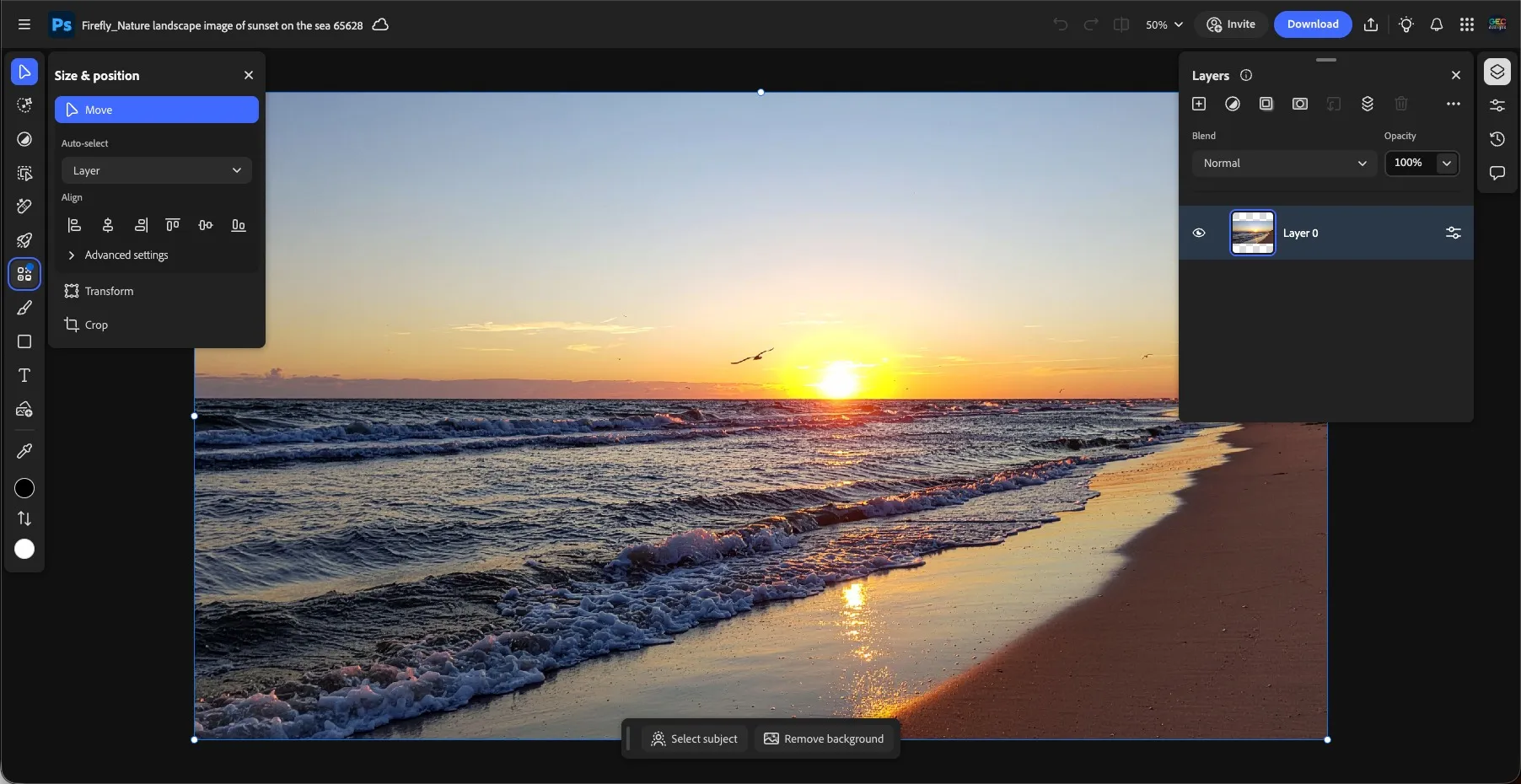
From there, users can:
• Add or edit text
• Adjust colors and lighting
• Apply filters and effects
• Perform detailed retouching
• Use familiar Photoshop tools for final refinement
This step is where Firefly clearly differentiates itself from standalone AI image generators. Instead of exporting an image and moving to a separate tool, users move seamlessly from AI generation into professional-grade editing within the same ecosystem.
It’s this continuity, from prompt, to generation, to editing—that allows designers to turn AI-generated visuals into usable, production-ready assets.
At this point in the workflow, Firefly has covered:
• Idea discovery through the gallery
• Prompt creation and enhancement
• Image generation with multiple models
• Post-generation editing
• Direct handoff to Photoshop for final polish
From AI Output to Final Design: How the Workflow Actually Feels
What makes Firefly powerful isn’t just generation, it’s continuity.
A typical workflow looks like this:
1. Generate visual concepts using Firefly
2. Choose the strongest variation
3. Refine details in Photoshop or Illustrator
4. Export polished, client-ready assets
This removes the fear of “AI replacing creativity.” Instead, AI becomes a starting point.
Practical Benefits of Using Adobe Firefly in Daily Creative Work
Let’s talk about why creators actually keep using Firefly after the initial excitement fades.
In real-world creative work, tools survive not because they’re impressive once, but because they consistently reduce friction. Adobe Firefly fits naturally into daily workflows where speed, clarity, and usability matter more than novelty. Instead of forcing creators to rethink how they design, Firefly quietly supports the process, helping ideas move forward without unnecessary effort.
Over time, this practicality becomes the reason designers, marketers, and content creators return to Firefly again and again.
Firefly helps you:
• Start faster
Instead of beginning with a blank canvas, Firefly allows creators to move from idea to visual concept within minutes. This is especially useful during brainstorming, mood board creation, or early-stage design exploration.
• Explore more ideas
By generating variations quickly, Firefly makes it easier to test multiple creative directions without committing too early. Designers can compare styles, compositions, and moods before refining a final output.
• Reduce creative fatigue
Repetitive tasks, such as background creation, filler visuals, or concept mockups, can drain creative energy. Firefly helps offload this initial effort, allowing creators to focus on higher-level decisions.
• Maintain professional quality
Because Firefly integrates directly with Adobe’s design tools, outputs don’t feel disconnected or unfinished. Generated visuals can be refined, edited, and polished to meet professional standards.
Benefits you’ll notice quickly
• Faster turnaround times
Projects move from concept to draft more quickly, which is especially valuable in marketing, social media, and client-facing design work.
• Fewer creative blocks
When ideas stall, Firefly can act as a visual catalyst, offering starting points that help creators move past hesitation or indecision.
• Cleaner AI outputs
Compared to many standalone generators, Firefly outputs are structured in a way that makes them easier to edit and adapt within professional design environments.
• Less reliance on stock imagery
Instead of searching endlessly for stock images that “almost fit,” creators can generate visuals that are closer to their exact needs and then refine them further.
Adobe Firefly Plans: A Quick Overview
Adobe Firefly is available through multiple plans designed to support different levels of creative usage. While plan pricing varies by region, the feature structure and credit-based system remain consistent globally.
At a high level:
• Firefly plans are based on monthly generative credits
• Higher plans provide more credits and extended usage limits
• All plans are built to work seamlessly within Adobe’s creative ecosystem
The Standard plan is suited for individuals who want to explore AI image and video generation and use Firefly for light creative work. It includes access to Firefly’s core features, partner AI models, and Firefly Boards for visual ideation.
The Pro plan is designed for regular creators and professionals who generate AI content more frequently. It offers higher monthly credit limits, extended video and audio capabilities, and deeper integration with Adobe tools such as Photoshop and Adobe Express.
The Premium plan is intended for power users and teams with high-volume creative needs. It includes significantly higher credit limits, support for large-scale image and video generation, and additional flexibility for Firefly Video usage beyond standard limits.
For the most up-to-date plan details and regional pricing, users can refer directly to Adobe’s official Firefly plans page.
Who Should Use Adobe Firefly (And Who Might Not)
Adobe Firefly is well suited for creators who want to incorporate AI into their workflow without losing structure or creative control. It works best for users who value efficiency, usability, and professional output over experimentation alone.
Adobe Firefly is ideal if you:
• Want AI-assisted creativity without chaos
Firefly is designed to guide the creative process rather than overwhelm it, making it easier to generate usable visuals while maintaining direction and intent.
• Work in design, marketing, or content creation
Whether you’re a graphic designer, marketer, social media manager, or content creator, Firefly fits naturally into workflows where visuals need to be produced consistently and efficiently.
• Need visuals you can actually use commercially
Firefly’s integration with Adobe’s creative tools makes it easier to refine, edit, and prepare AI-generated images for real-world projects, client work, and professional publishing.
It may not be ideal if you:
• Are looking only for hyper-experimental AI art
If your primary goal is to push AI into unpredictable or purely abstract directions, other tools focused on open-ended experimentation may offer more freedom.
• Prefer randomness over control
Firefly emphasizes structured creativity and refinement. Users who enjoy letting AI produce entirely unexpected results with minimal guidance may find this approach more controlled than they prefer.
Conclusion
Adobe Firefly isn’t built to impress through extremes or unpredictability. Instead, it focuses on making AI-powered creativity practical and usable, blending generation, refinement, and professional editing into a single, connected workflow. Throughout this article, we’ve looked at how Firefly fits within the broader AI landscape, how its interface and workspace are structured, and how features like prompt assistance, model selection, and post-generation editing support real creative work.
For beginners, Firefly removes much of the intimidation traditionally associated with design tools, making it easier to move from an idea to a visual result. For designers and professionals, it helps reduce repetitive tasks, speed up ideation, and maintain creative momentum, especially through its tight integration with tools like Photoshop.
If you’re planning to explore Adobe Firefly or add it to your creative workflow, you can do so using the link shared in this article. Using that link helps support our work and allows us to continue publishing in-depth, hands-on reviews like this, while giving you access to the same features and tools.